Desktop Buying Guide
Our desktop buying guide is for people who need power more than portability, or are on a tight budget and still need a competent workhorse.
In this desktop computer buying guide, we'll help you navigate the large selection of desktops ranging from traditional tower systems to the setups with all the computer parts built into a larger video screen, called all-in-ones.
The best choice for you depends on your budget, what you need a computer for, and whether you plan to get into the computer's guts--among other important factors.
The first step in our desktop PC buying guide is to identify the two main types of desktop computers.

Know the Desktop Types
Tower desktops are the classic style of computer with components (hard drives, processor (CPU), graphics card, and so on) that are separate from the monitor.The bigger the tower, the more room there is for extra components and add-ons.
Towers are often sold separately from monitors, keyboards, and mice.
All-in-one desktops come with almost everything--monitor, drives, CPU, webcam, and so forth--in one unit within the monitor.
Screen sizes are often big, starting at 23 inches and going up, but all-in-ones are designed to take up less space overall compared to towers and their separate monitors.
Choosing Between an All-In-One and a Tower System
The next step in our desktop buying guide is to determine which of these two main types of desktop systems is best for you.This depends on your needs and how you'll use the system.
Consider the following factors:
Ease of configuration and upgrades - Tower desktops are much easier to upgrade than all-in-ones because you can usually access and upgrade every component.
As new technologies come along, it's easier to integrate them into a tower without having to buy a whole new machine--this is particularly important to gamers.
All-in-one computers do offer some access to components, but many models won't let you upgrade more than the RAM or hard drive.
Space - All-in-ones take up less space, so you won't need extra room on or under your desk to store a tower.
A few models even mount on the wall.
Touchscreen technology - Many of the newer all-in-ones have touchscreens and are designed to be used with a finger as easily as with a mouse and keyboard.
Cost - In general, towers are less expensive in part because the cost of the monitor is not included.
This isn't a hard-and-fast rule; some towers (usually gaming systems) run thousands of dollars, and some all-in-ones start at under $800.
However, if you're looking for a computer that costs less than $500, towers are the place to start.
Buy the best desktop that you can afford, but don't mistake a more expensive system for a better system.

Laptop Buying Guide
They can be a great asset, whether you need to take a computer with you to class or just want to replace the computer you have now and save some desk space while you're at it.
Our laptop buying guide will show you what to look for when picking out the perfect portable computer.
While this laptop buyer's guide won't get into recommending specific machines, we will show you what general categories to look at, along with what options you may or may not need.
Select an Operating System and Size
First, decide which operating system you'd like on your new laptop.The operating system, or OS for short, is the underlying software that the entire machine runs on.
This is in contrast to the applications you use—like your web browser, photo editing tool, or favorite game—all of which run on top of the OS itself.
While an entire laptop buying guide could be written just to compare OS features, we'll give you the consolidated version here.
Windows 8
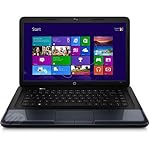 Windows laptops are some of the most popular laptops, giving
you the most compatibility with the most programs.
Windows laptops are some of the most popular laptops, giving
you the most compatibility with the most programs.You're likely familiar with Windows from a previous computer at work or school.
New laptops come with Windows 8, which has a new, tablet-like interface.
But don't worry, the Windows you know and love is still in there--after all, this is a laptop buying guide, not a tablet guide.
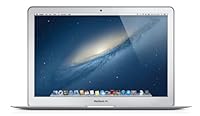
Chrome OS
 Google's Chromebooks are light in both size and functionality
and primarily built for the cloud.
Google's Chromebooks are light in both size and functionality
and primarily built for the cloud.That means instead of storing most of your files and other data locally on your machine, you'll be primarily accessing it over the internet.
If you already like the Chrome web browser, you'll feel right at home on a Chromebook.
They're great if you travel frequently and want to check email and browse the web; however, you won't be able to do much else.
Their biggest benefit is how inexpensive they are - the new Acer and Samsung Chromebooks start at $199 and $249 respectively.
A Guide to Laptop Sizes
 11- to 13-inch laptops - These laptops are
ultra-portable, ideal for people like students who move around a lot and
prefer to keep their computers with them at all times.;
11- to 13-inch laptops - These laptops are
ultra-portable, ideal for people like students who move around a lot and
prefer to keep their computers with them at all times.;14- to 16-inch laptops - These laptops represent the general use range. They're small enough to pick up and take along, but have enough power to do pretty much everything you want to do.;
17-inch laptops and larger - The biggest laptops are considered desktop computer replacements.
They are as powerful as they come, suited for video games and other heavy lifting tasks such as video editing.
They tend to be too heavy and their battery life too short for convenient portability.;
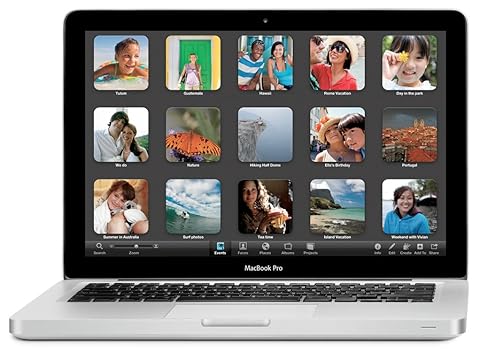
Which Extras You Need and Which You Don't
Touchscreen - Many Windows 8 laptops come with touchscreens, and some even transform into tablets. The new Windows 8 start screen and many Windows 8 gestures are more comfortable to use on a touchscreen, but if those features aren't interesting to you, you can save a few hundred dollars by looking for models without a touchscreen.Solid state drive - Many new computers come with traditional hard disk drives that offer enormous amounts of storage.
If you're looking for the speediest storage, get a solid state drive.
These drives are smaller but much faster, allowing your computer to turn on in mere seconds.
This laptop buying guide recommends solid state drives if you can afford them—they are generally more expensive than their hard drive counterparts.
DVD or Blu-Ray drive - Do you want a DVD or Blu-ray drive?
Newer laptops shed optical disk drives in order to become smaller and lighter.
While you can get your software via download from a large number of app stores, including Amazon, this laptop guide recommends getting a disk drive if you plan to watch DVDs on your laptop.
Graphics card - If you plan on playing video games on your laptop, make sure it has a dedicated video card.
While Facebook games will run fine without one, anything more serious (be it World of Warcraft or
The Sims) will need more power to run smoothly.
Avoid anything that says "integrated graphics." Instead, look for graphics by ATI or Nvidia , the top two graphics card makers.
An important note from this laptop buying guide:
Unlike a desktop computer, you cannot upgrade a laptop's graphics card later.
Be sure your laptop has a dedicated graphics card if you think you'll want it later.
USB and other ports - Be sure to count how many USB and other ports are on the laptop.
You'll need USB ports to connect a separate mouse, memory sticks, smartphones, and many other peripherals.
You may also want an SD card slot to more easily transfer your camera photos, or an HDMI port to connect your laptop to an HDTV.
Battery life - If you plan on using your laptop while you're out and about, be sure to look at how long the battery is rated to last.
Many big, powerful laptops only last for a couple of hours on a single battery charge, while some smaller laptops can last over seven hours on a full charge.
Once you've looked at all of these considerations, you should be well on your way to finding a laptop that's a great fit for you.
Do you want a small, light laptop so you can work from a coffee shop?
Or maybe you want a powerful gaming laptop that you can also watch DVDs on.
While shopping, be sure to check back with this laptop buying guide and our other computer buying guides if you have any questions during the process.


No comments:
Post a Comment